
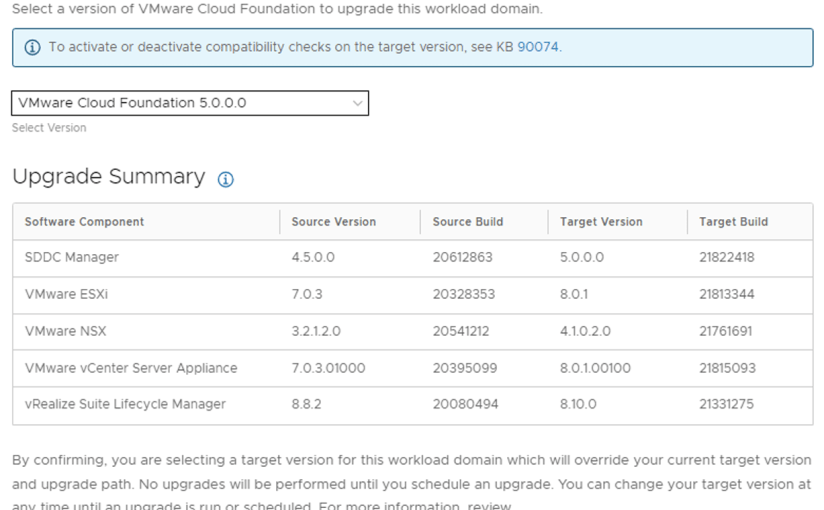
Welcome to the new blog, In this blog we will be discussing about the process to be followed for VCF upgrade, I have taken an example for version 4.5 to 5.0, however the process will be same for other versions as well. (do not forget to check the compatibility & upgrade guide) to ensure you are not missing any intermediate upgrade if any.
You can perform a sequential or skip-level upgrade to VMware Cloud Foundation 5.0 from VMware Cloud Foundation 4.3 or later. If your environment is at a version earlier than 4.3, you must upgrade the management domain and all VI workload domains to VMware Cloud Foundation 4.3 or later before you can upgrade to VMware Cloud Foundation 5.0.
Please refer to the upgrade guide document for the most recent updates and process: https://docs.vmware.com/en/VMware-Cloud-Foundation/5.0/vcf-lifecycle/GUID-C82BB0D4-FD52-4CC9-A6BB-3A6CF35E380E.html
In this document I have tried to capture step by step screenshot of upgrade process and few errors for your reference.
We can execute two ways of upgrade process, preferably use online method, in case of any issues
connecting VMware depot in air gaped environment we can go with Offline method using Bundle Transfer Utility.
Downloading VMware Cloud Foundation Upgrade Bundles:
- Online, connecting VMware depot with Partner account
- Offline, download bundles using Bundle Transfer Utility and move to SDDC Manager
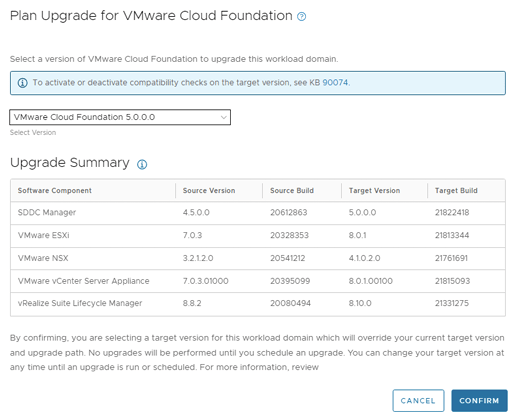
Below screenshots refers to upgrade Plan and Target Version BOM along with step by step component update path.
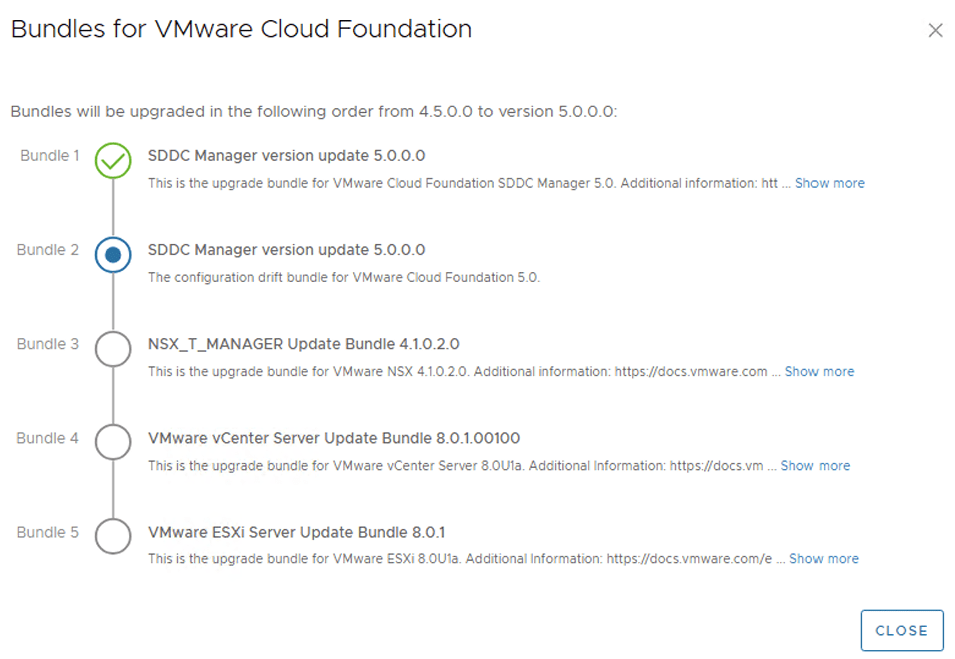
Management Domain Upgrade Preparation : take file based backup of all components like SDDC manager, vCenter, NSX Manager. Other than this, you may take cold snapshots as well of all these components.
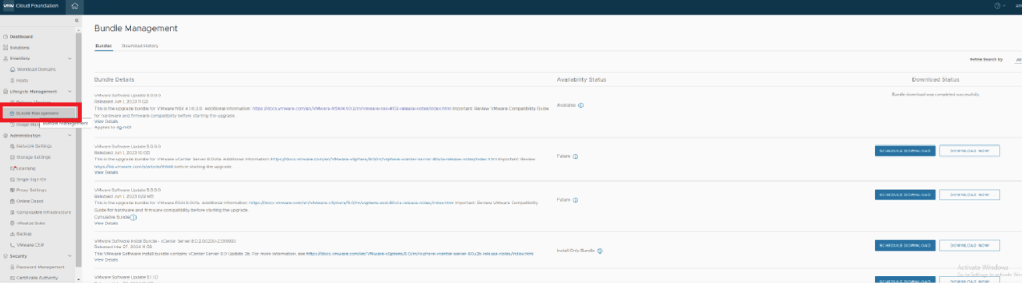
Upgrade Plan Steps: Connect SDDC Manager UI and ensure SDDC Manager connected to VMware Online Depot, So SDDC Manager can download all required upgrade bundles.
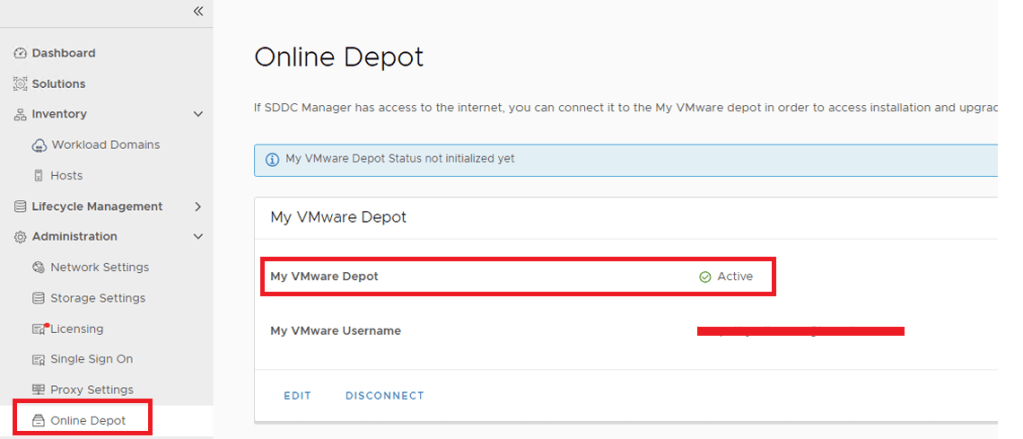
On successful connection to online depot, Under Life Cycle Manager you will be able to see available bundles to download.
In SDDC Manager UI, navigate to Workload Domain and select Management Domain. Under Update/Patches execute Prechecks. This will run a overall environment health/requirement check for upgrade and will report any deviation or errors.

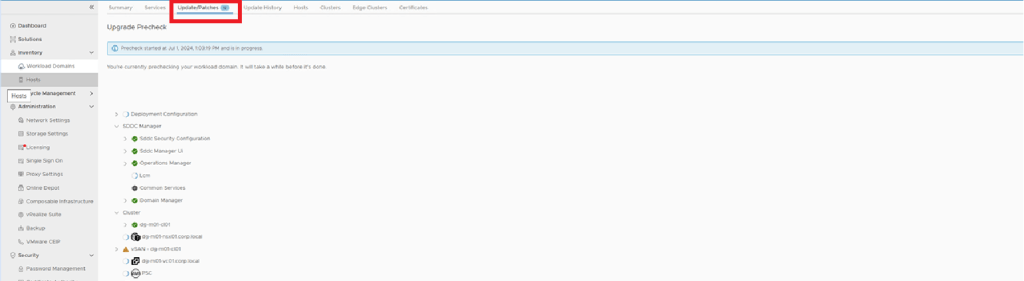
Apply all required corrective fix for failed component and ensure environment is error free before starting Upgrade. Once all set it’s ready to proceed first step by upgrading SDDC Manager.
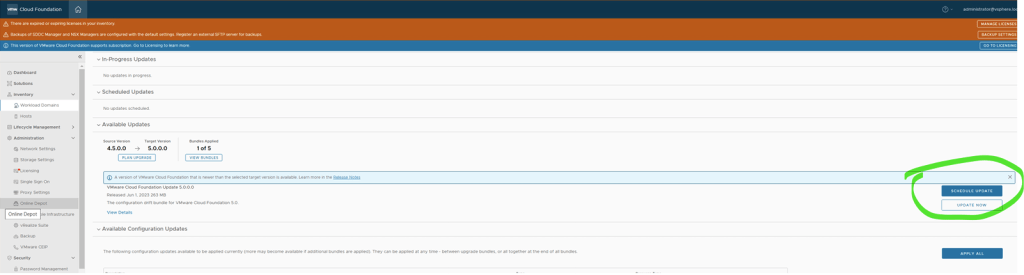
SDDC Manager UI > Workload Domain > Update/Patches > Scroll down for Available Updates.
SDDC Manager will show all possible Update options for current version (in this case 4.5.0), drop down the list and choose 5.0.0.0.

Click on UPDATE NOW option to initiate upgrade SDDC Manager, once initiated it may take 3-5 Mins to start processing will get below status screen in same UI.
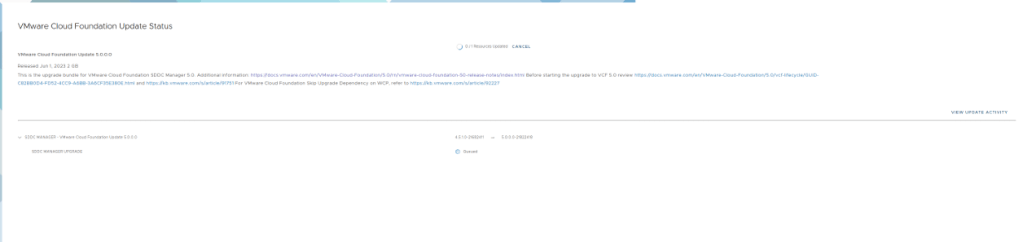
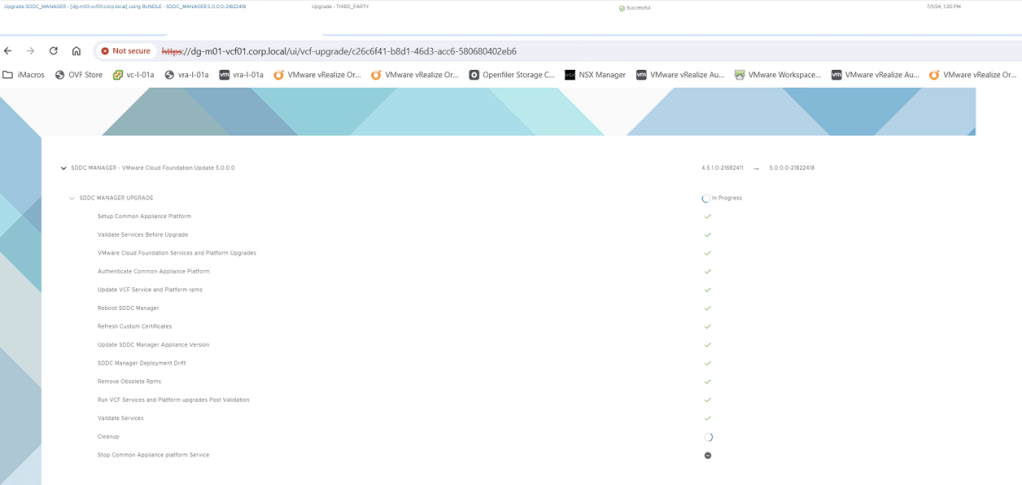
On the same screen top right corner click Update Activity to see detailed progress of SDDC Manager
Upgrade.

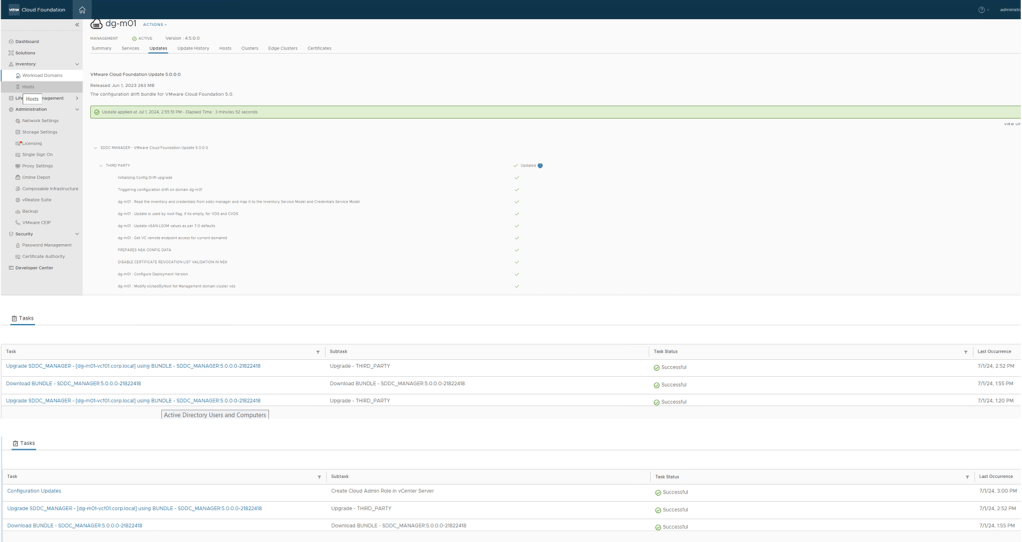
It may take 30-40 Mins to complete SDDC manager upgrade, progress status can also track under recent tasks in SDDC Manager.

Once Upgrade of SDDC Manager complete, check Plan Upgrade will show the next available upgrade components and tasks to proceed.


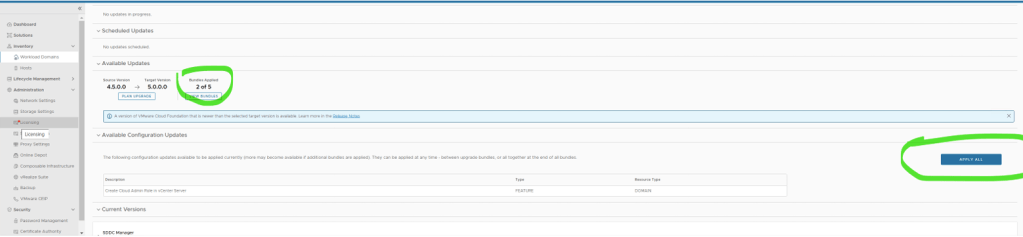
Next Step: SDDC Manager Config Drift : SDDC Manager UI > Workload Domain > Update/Patches > Under Available Updates > Choose next available bundle to download, This will download Config drift pack.

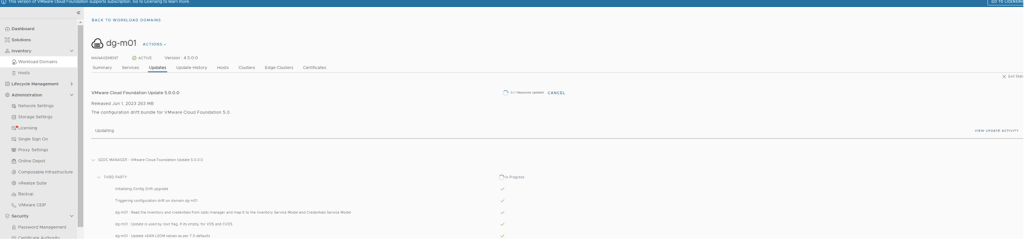
SDDC Manager Configuration Drift is complete and now SDDC Manager is fully upgraded to 5.0.0.0 Version.
Now you see under Available Updates, Bundles applied showing 2 of 5 is applied.

Next step : NSX Manager Upgrade : Start Downloading NSX Bundle for next upgrade step.

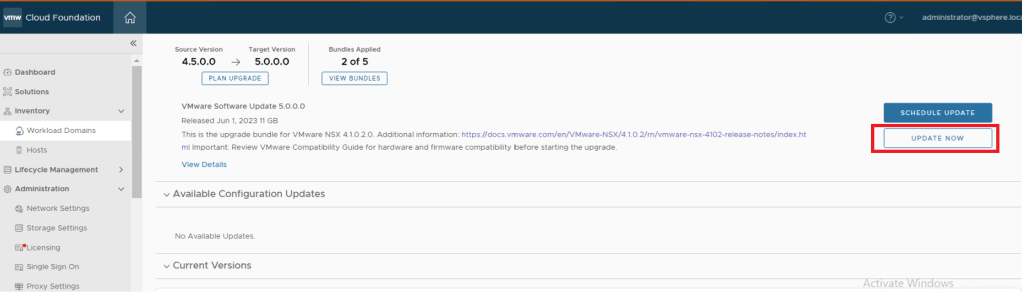
Choose UPDATE NOW, there are no Edges deployed in this environment so proceeding further with default option.
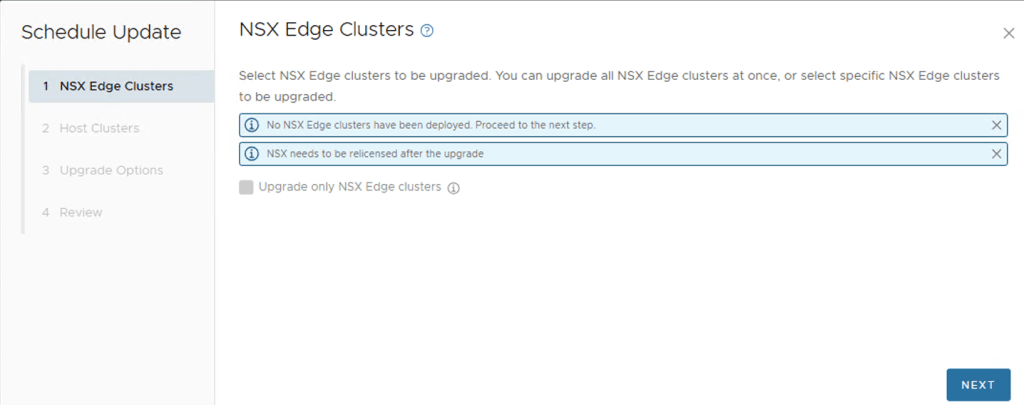

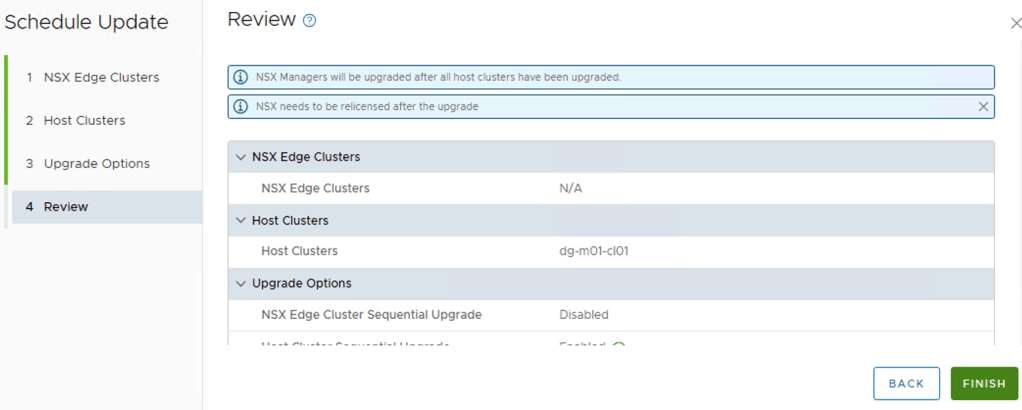
Click VIEW STATUS to check current progress of update.
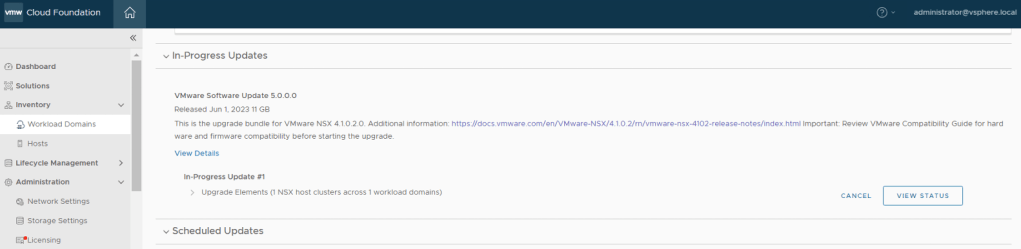
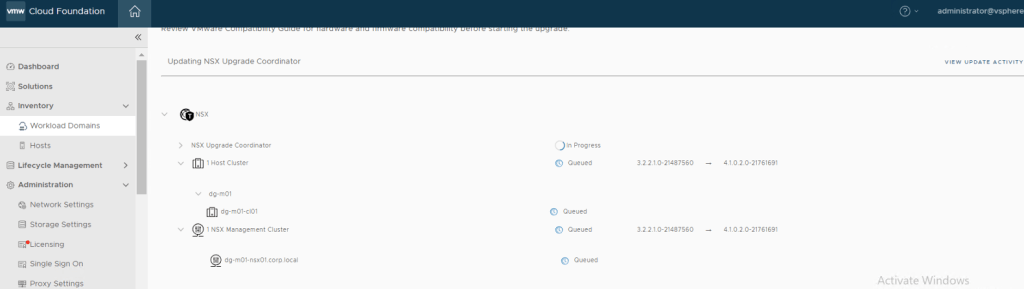
We can also track progress in NSX Manager UI > Upgrade
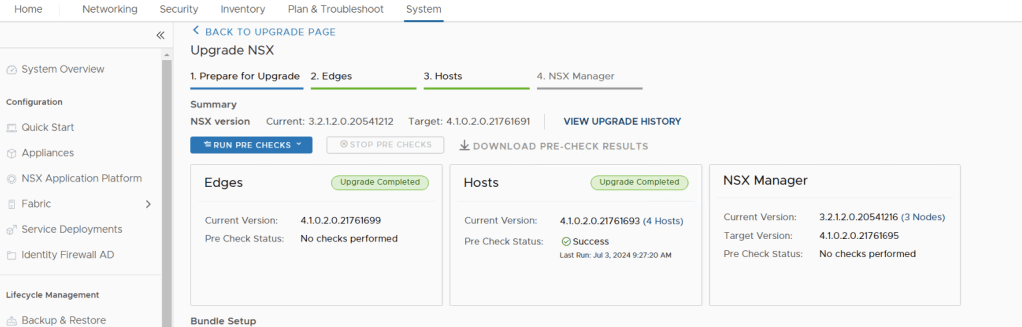
Once upgrade is completed, it can be shown in NSX UI as well as SDDC UI.
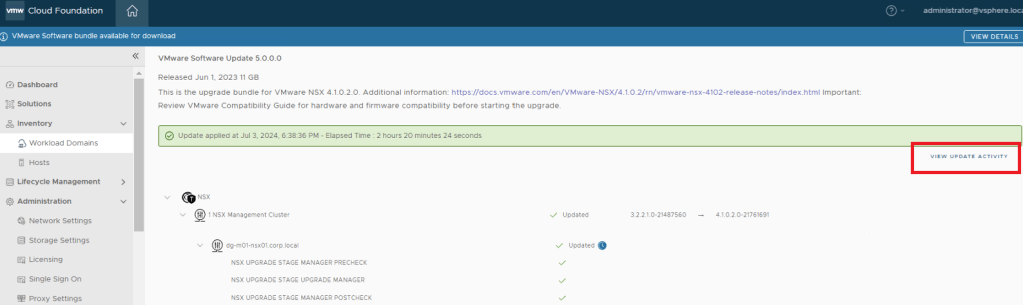
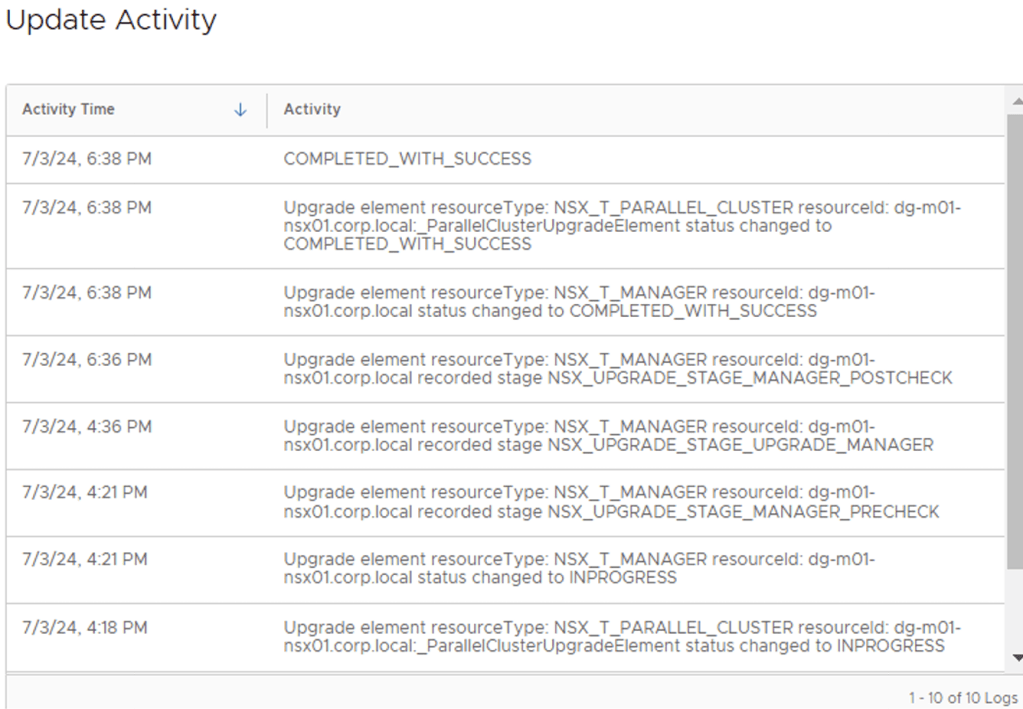
If we click on View Update Activity on right top corner it will provide detailed information about each step performed during upgrade. This will be useful if upgrade failed so it can be tracked on which stage it’s failed.
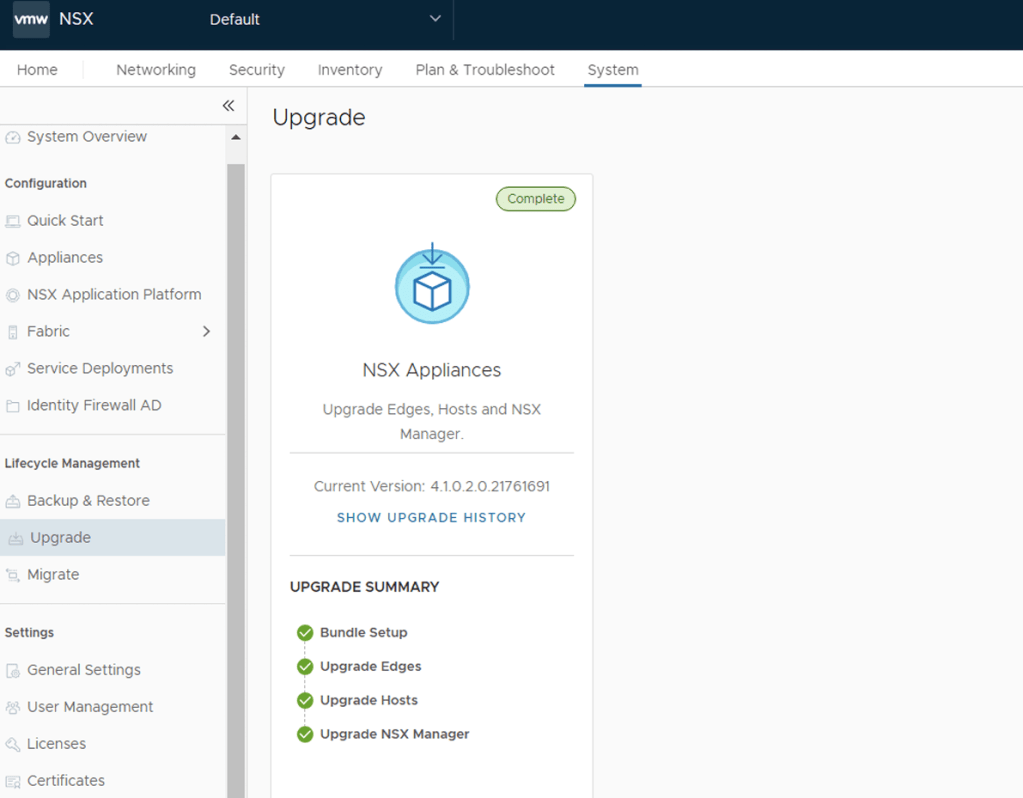
Next Step : vCenter Upgrade
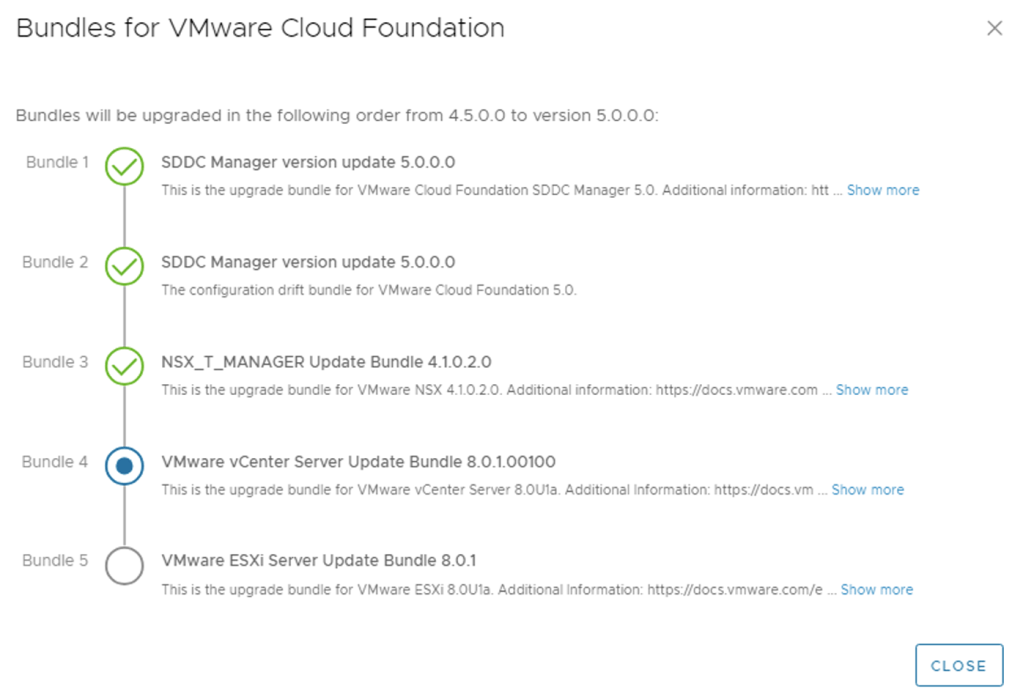

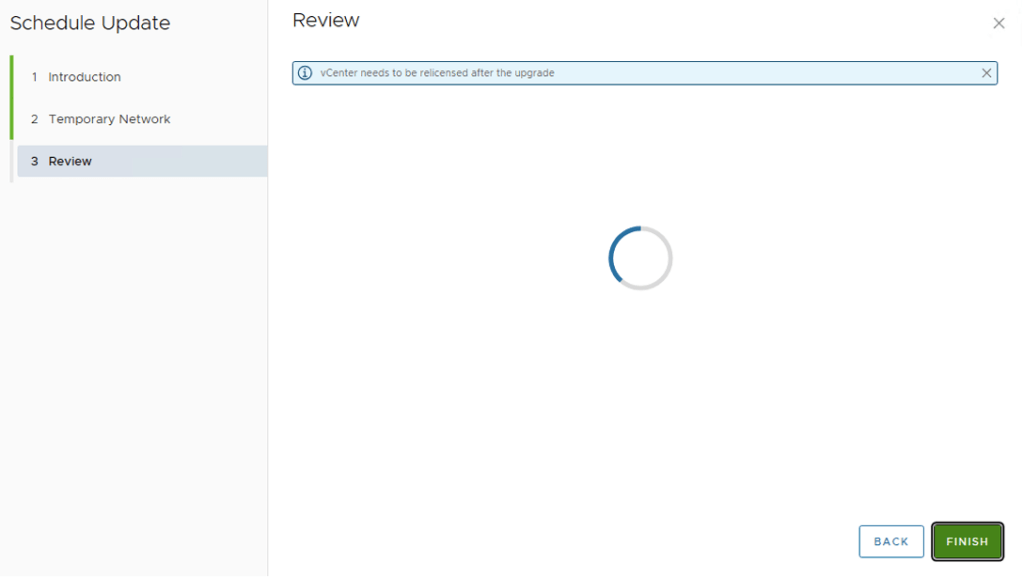
Once clicked on Update Now, will get pop window to supply temporary IP for new vCenter.
Note: once vCenter Upgrade complete it will retain the old vCenter IP for new version.
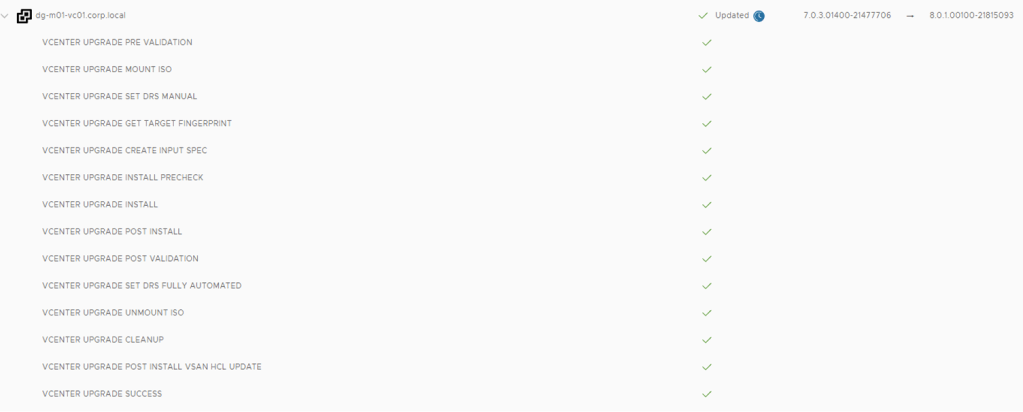
vCenter Upgrade is successful.
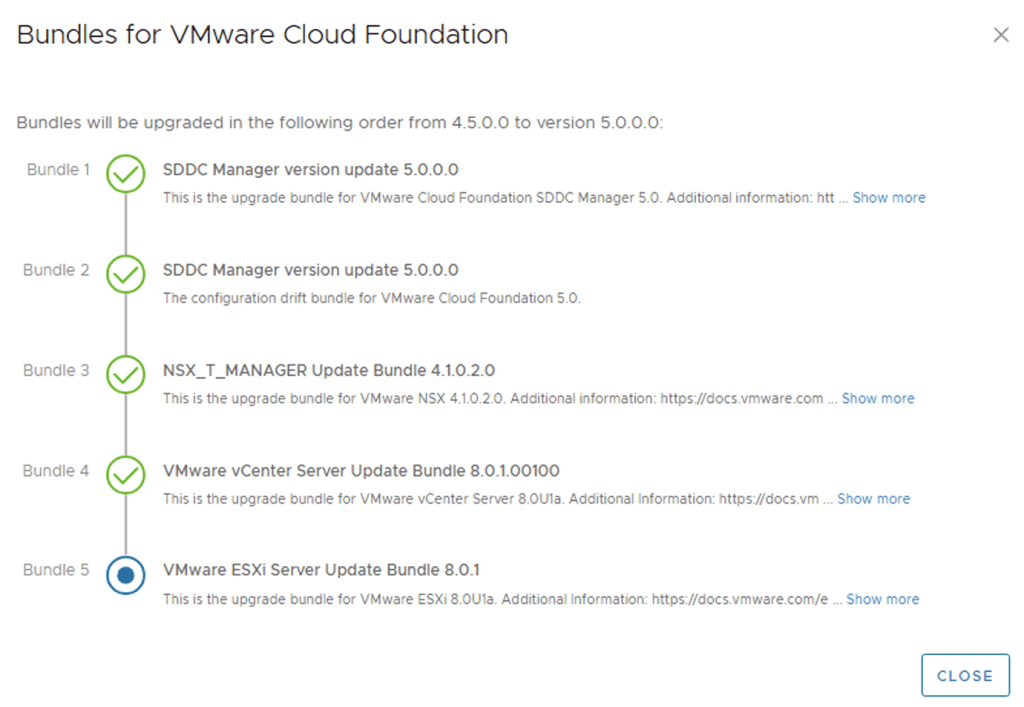
Next Step : vSphere Upgrade.

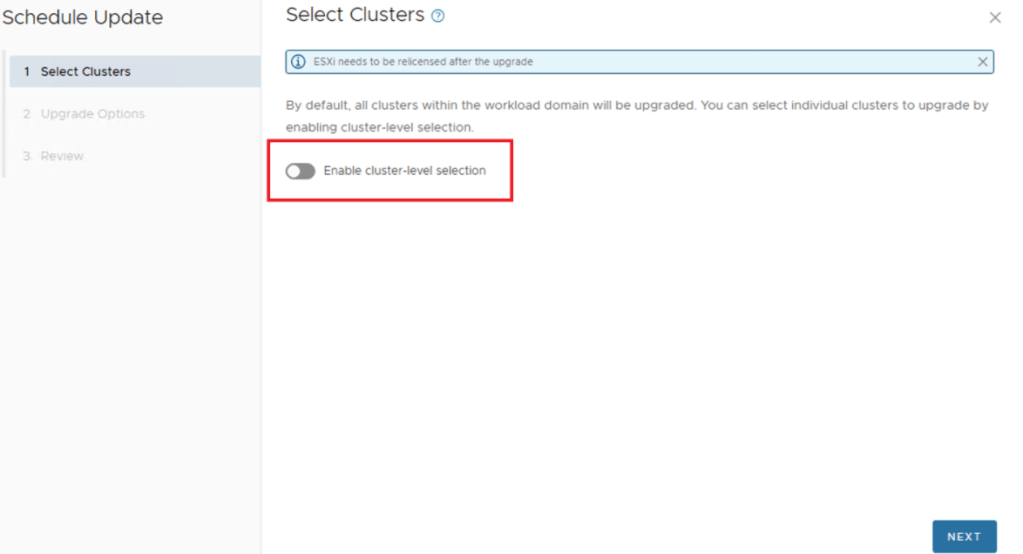

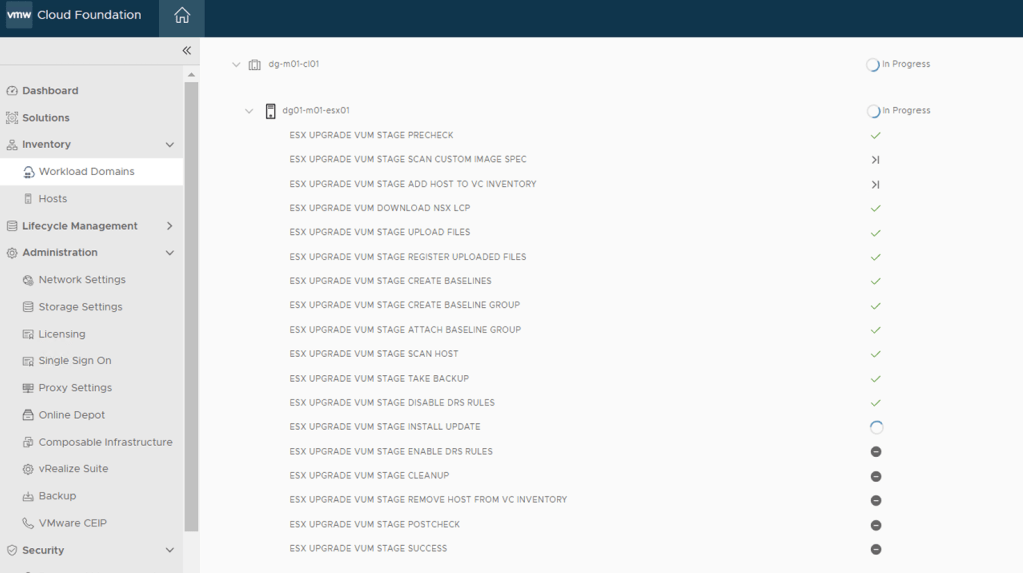
Progress can also be tracked in vCenter recent tasks.
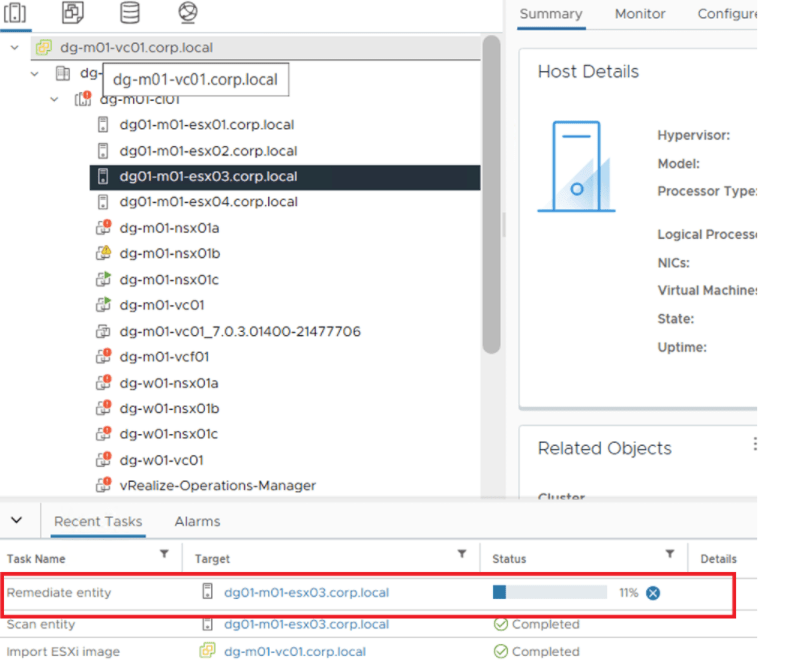
Now Upgrade of ESXi hosts are completed with Success.
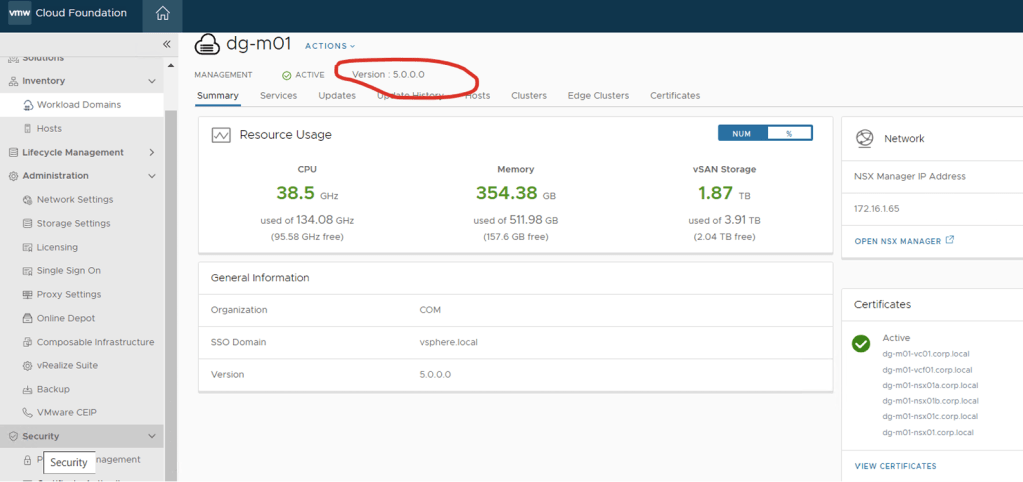
Now all the components of Management domain are upgraded to BOM version 5.0.0.0, do a SOS health check, Follow the same process to upgrade Workload domain clusters.

 NSXworld