

Welcome Back!
In previous blogs, we promoted Site-1 as Active & Site-2 as Standby. Also added on-prem locations (site-1/LM-1, Site-2/LM-2) to Active GM.
Today we will be discussing about–
1. Importing local objects to Global Manager.
2. Remote Tunnel End-Points.
IMPORTING Local OBJECTS TO GLOBAL MANAGER
Key Points:
- This is the one-time step where we can import LM objects to GM, this import options gets populated right after we add any LM to location manager.
- Once we decided to not import any LM objects (clicked on No, thanks, refer below image), this option will not show up again since it is a onetime option, unless we remove LM from location manager & re-add it.
- Either All objects will be imported from any LM to GM or None.
=======================================================
Once we added an LM to location manager, we get an option to import the existing configuration like gateway component, segments, Security policies of LM to GM.
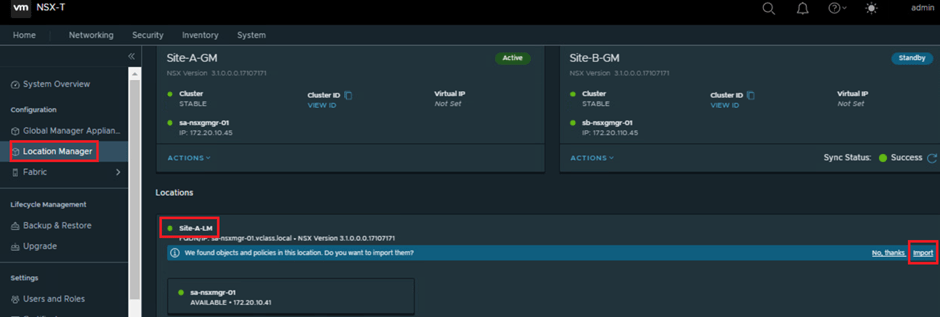
To import any configuration from LM, taking a backup of local manager is a prerequisite, take the backup if not already in place & click on proceed to import.

There is an option to add prefix to all imported objects, this option is useful to distinguish the imported objects.
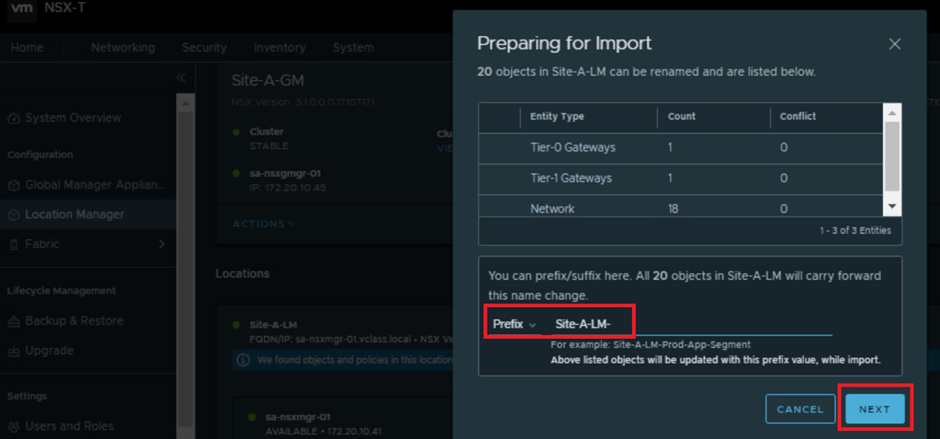
At this point we can see all the existing local configuration like, number of Tier-0 , Tier-1 & networks which will be imported to GM.
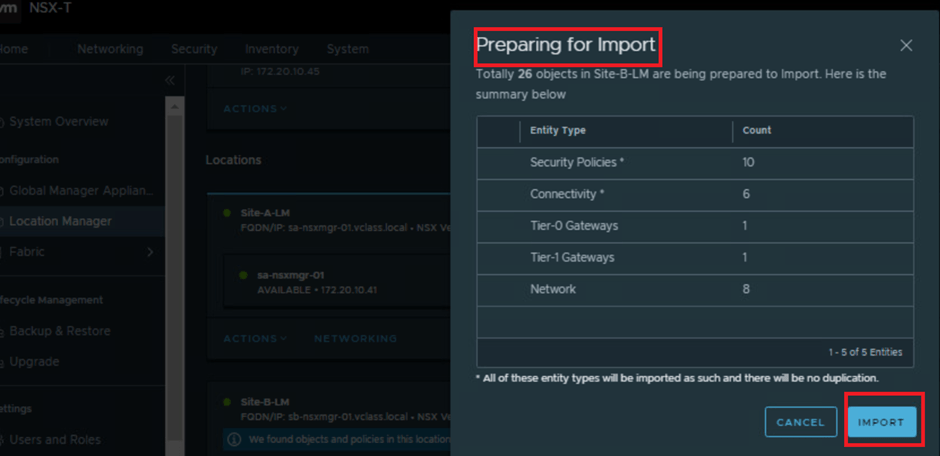
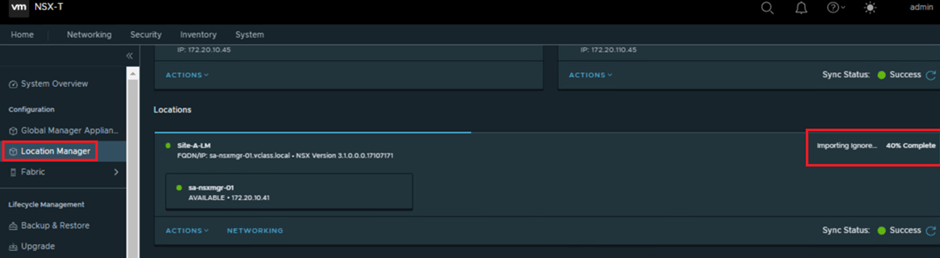
Importing the NSX objects to Global Manager can take approximately 10 minutes to complete.
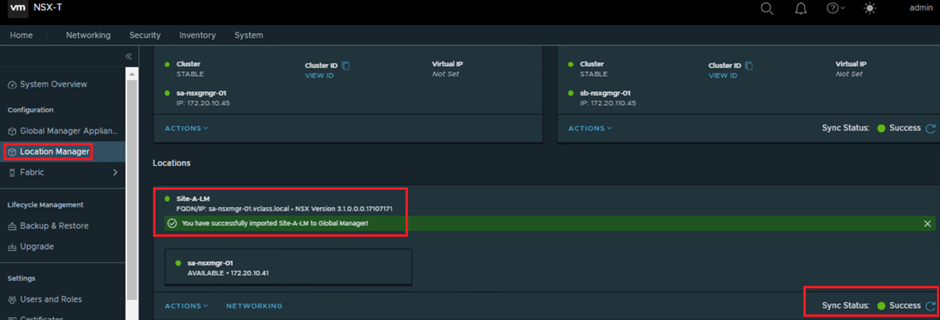
Once objects are imported, we can see those objects in GM UI only along with the prefix we added during the import process.

Similar way we can run the import for Site-B as well, once that is done our GM UI should look like below.

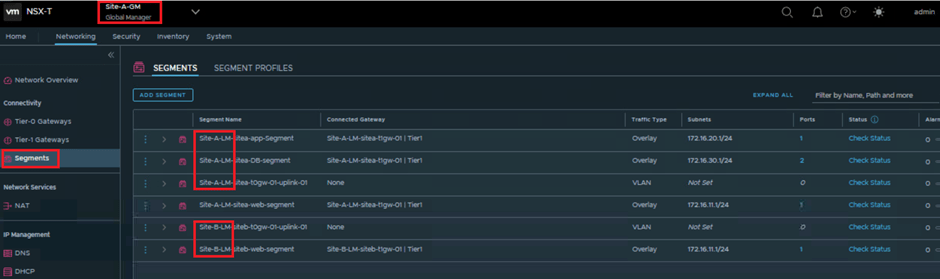
=======================================================
2. Remote Tunnel End Points
RTEP is an edge node IP that is used for cross location communication.
Key Points:
- RTEP is present only on Edge Nodes, this eliminates the need for tunnels between hypervisors across location.
- RTEPs use Geneve encapsulation to communicate.
- Only one RTEP IP can be configured per edge node.
- The RTEP configuration is done from the LM.
- GM selects VNI-RTEP, and each LM is updated.
How to configure RTEP-
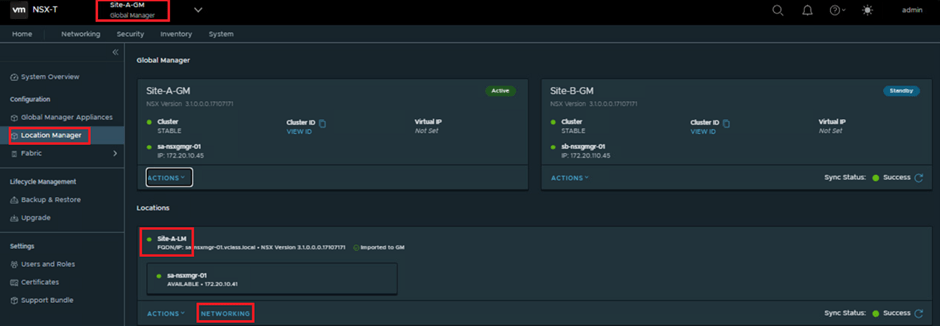
1. On the Site-A-GM Global Manager NSX UI, navigate to
System > Configuration > Location Manager > Locations > Site-A-LM > NETWORKING
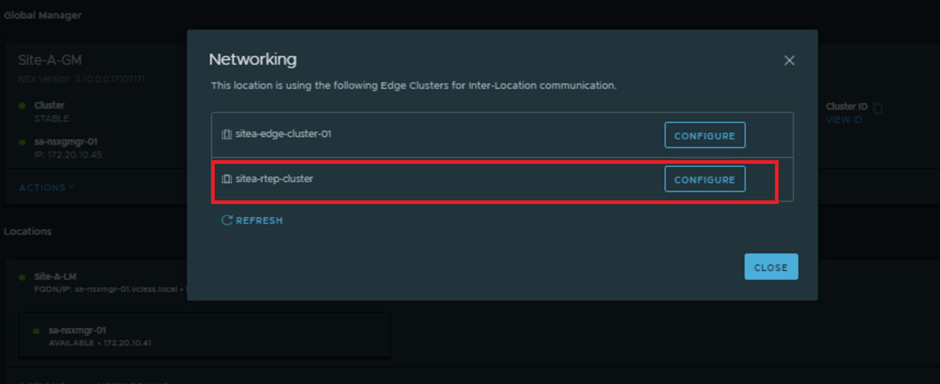
2. click CONFIGURE for the edge cluster which we are using for RTEP.
This step leads you to the Site-A Local Manager (Site-A-LM) at System > Quick Start > Configure Edge Nodes for Stretch Networking.
3. Provide all the required details like, Edge Cluster, Edge Node, Edge switch details, RTEP VLAN & Pool.
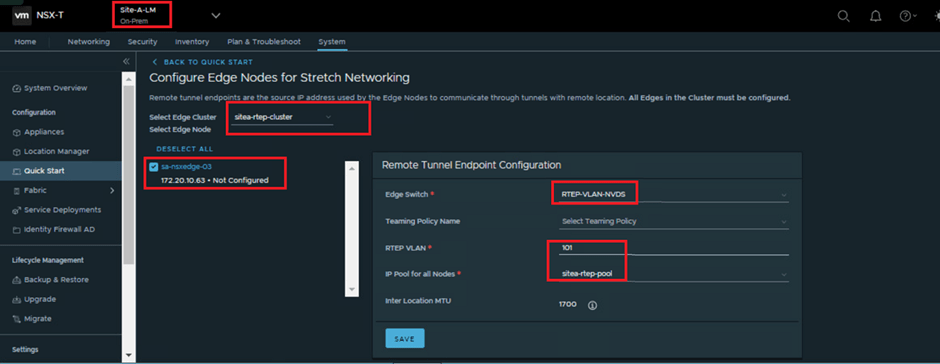
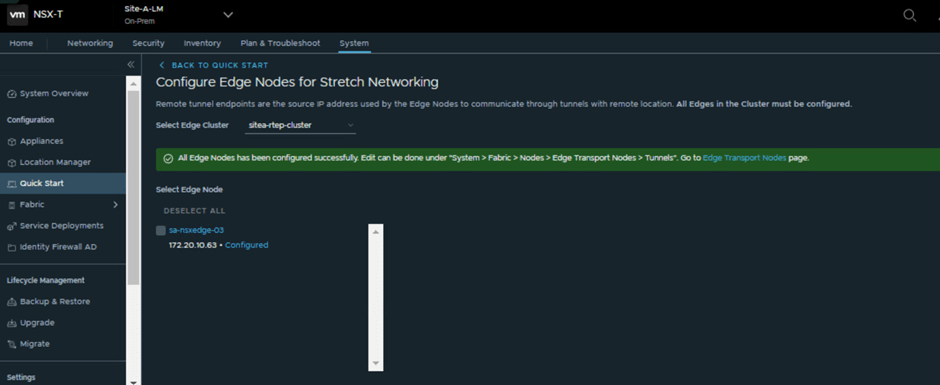
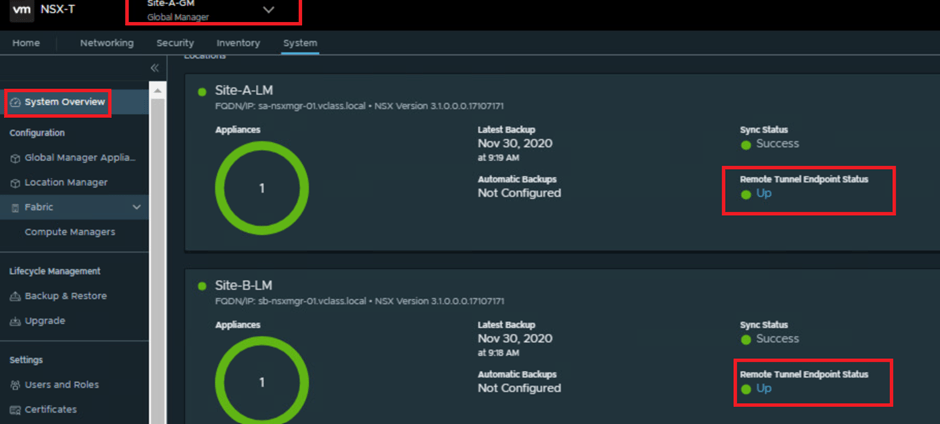
Similar way, we can prepare the RTEPs for Site-B as well (to keep the documents short, not attaching the screenshots for Site-B), once we complete both sites RTEP configuration, final UI will look like below.
This is it for today’s blog. We will be discussing about “creating stretched segment across two physical sites” and “MAC learning of VMs situated at two different sites as well as East-West packet flows between 2 VMs residing on two different sites in next blog.
PS: Any Improvement points or suggestions are welcome.
—–Thank You—–
Prashant Pandey

 NSXworld